How to download NomadTracks maps for offline use on Android
Download the area you need while you have a connection. The Chamonix example below uses NomadTracks Map and shows the completed download and the map being used offline. Offline basemap downloads require Pro.
Get NomadTracks free — iOS & Android
Open Offline Maps
Go to Maps → Map Providers → NomadTracks Map → Offline Maps, then tap +. Choose the same map style you plan to use on the Live map.
Choose your area and detail
Pan and zoom to the area you need. Choose the maximum zoom level: more detail needs more storage. Our example covers Chamonix and nearby valleys at zoom 0–14.
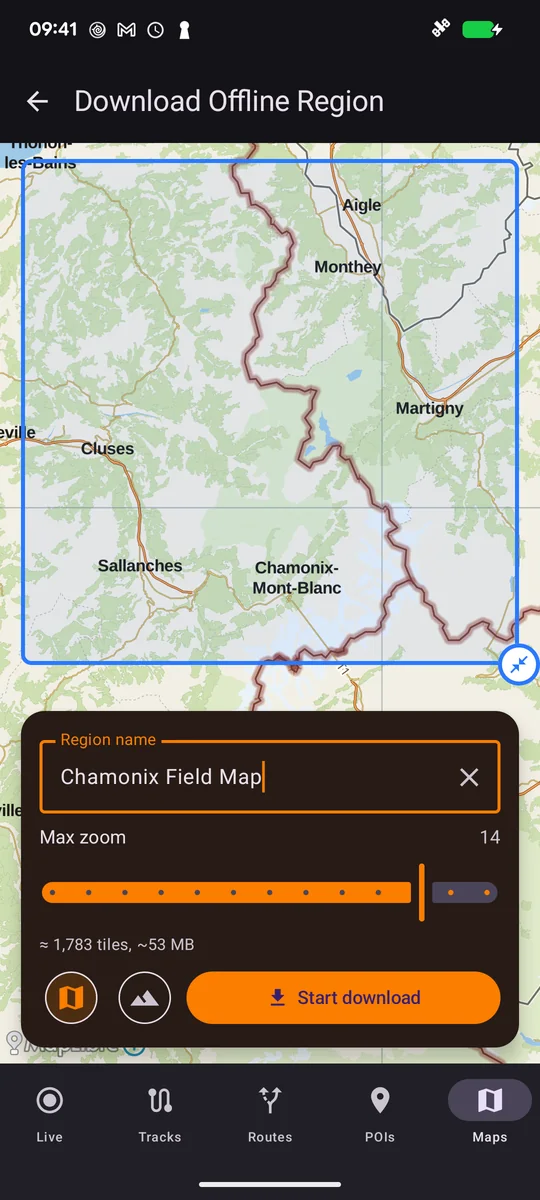
Name and download the region
Give the region a useful name, such as Chamonix Field Map, then start the download. Keep the connection available until it finishes.
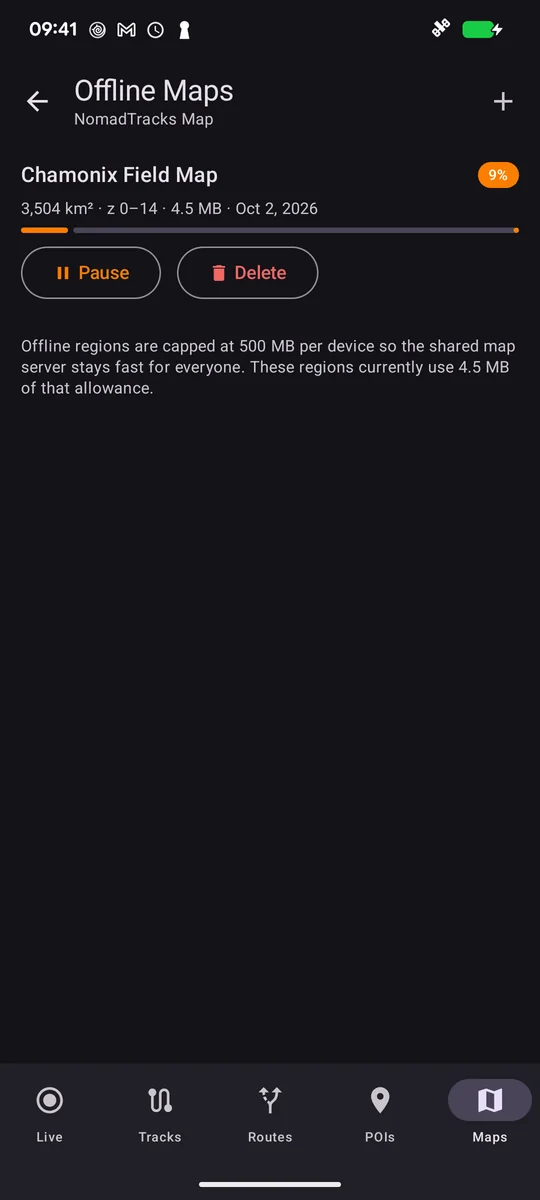
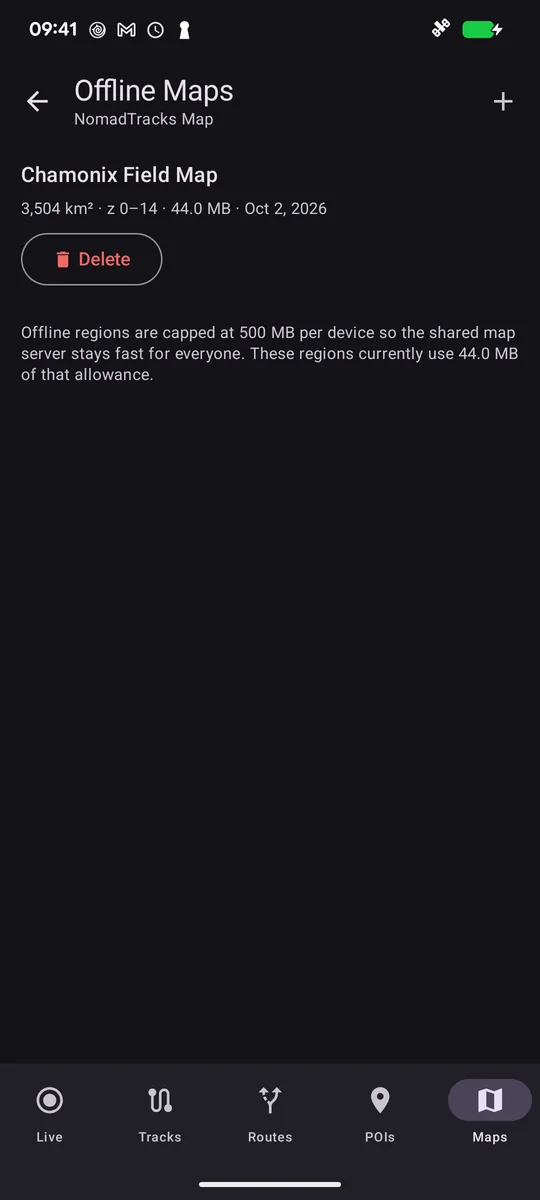
Check that it has finished
Wait for the region to show its completed size. This example occupies 44 MB; your download size depends on the area and detail level.
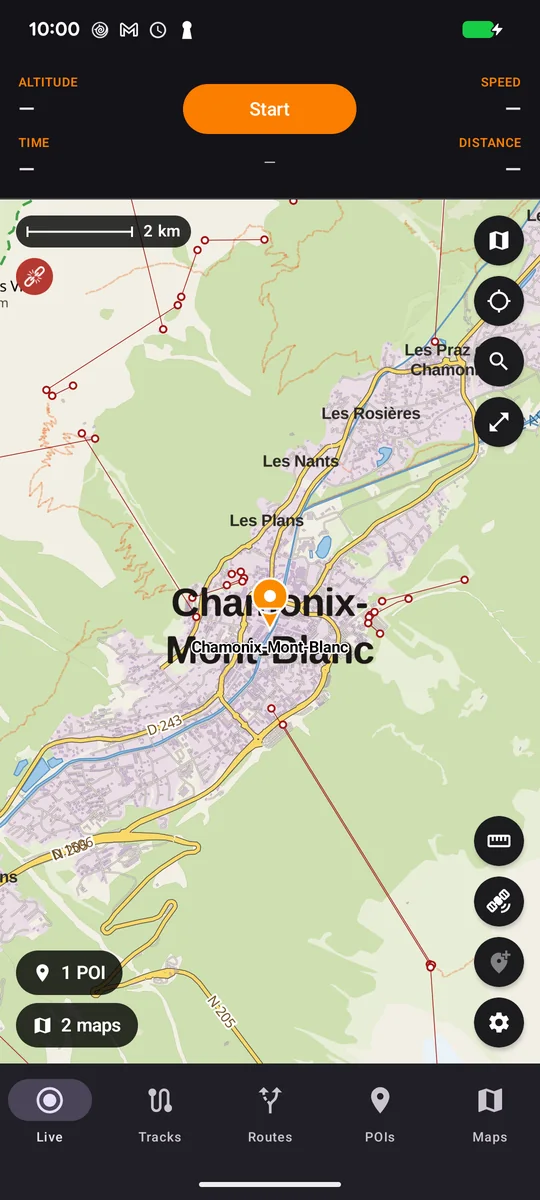
Try it before you leave
Open the downloaded area on the Live map, switch on airplane mode and make sure Wi-Fi is off. Pan and zoom to check the detail you need. Re-enable your connection afterward. A place selected earlier can be reopened from recent search.
FAQ
Does a saved PDF download the surrounding basemap too?
No. The imported map is stored on the device, but download the surrounding NomadTracks basemap separately if you need it offline.
Can I search for new places or calculate a new route offline?
The offline map download is for viewing the basemap. Do not assume online place search or route calculation will work without a connection. Plan first and test what you need before leaving.
Do I need location permission just to look at the map?
No. You can browse a public place manually. Showing your own position or recording a track needs location access.